Orders list
The orders list (Orders → Orders list) is the main working screen of the shop. Recent updates made it denser and easier to scan.
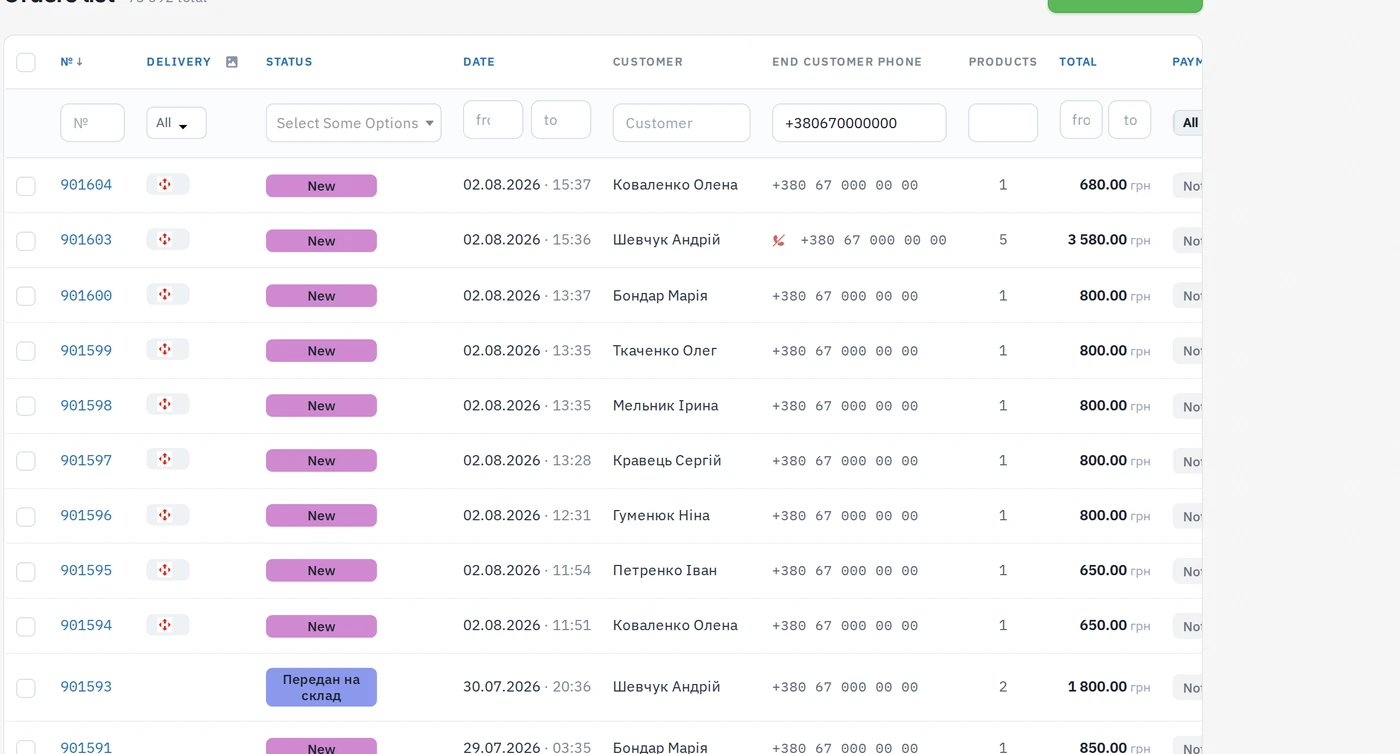
Status column
Every status is a colored pill of the same width, so the column reads as a straight rail — the eye catches the color without hunting for the edge. Long status names simply wrap to a second line. The color and the font color come from the status settings (Orders → Order statuses).
Delivery column: icons or names
Next to the Delivery header there is a small toggle button:
- full mode — a chip with the carrier logo and its name;
- compact mode — only the logo; the name shows up as a tooltip on hover. Methods without a logo keep showing their name.
The choice is remembered per browser — the list opens the way you left it.
Phone column
Phones are displayed in a standardized format without changing the numbers stored in the database. The format is configurable in the shop settings (five variants: with spaces, compact with parentheses, international, etc.) — so foreign numbers also stay readable.
If the Telephony module is connected, a call button appears next to the number: one click dials the customer through your PBX (Binotel and others). A crossed-out phone icon means the customer asked not to call ("do not call me" checkbox at checkout).
Payment filter
The payment column header holds a compact three-state filter: all / paid / not paid — one click, no dropdown.
Choosing visible columns
The Columns button in the toolbar above the table opens a list of checkboxes: delivery, status, date, customer, phone, products, total, payment and internal note. Untick what you do not need and the column disappears at once, the footer totals shrink to match.
The choice is saved for your admin account (not for the browser), so it follows you to any computer; every colleague keeps their own layout. By default the Internal note column is hidden — it is the widest of the optional ones.
Internal note
Each order can carry a short staff-only note (up to 1000 characters) that the customer never sees. With the Internal note column switched on, click the cell, type, and press Enter or click elsewhere to save (Esc cancels). The same note is available on the order edit page (the collapsed Internal note field next to the buyer comment) and in the Nova Poshta waybill form.