The order edit page
Open any order from the orders list (Orders → click the order) and you land on its edit page. This article walks through what is on it today — the blocks, which of them are editable and which are read-only, and where the less obvious things live.
The page heading shows the order number (#41270). Numbers are plain
sequential integers: each new order gets the next number, no gaps, no
per-server offsets — the customer sees the same number in the confirmation
email and in their account.
Order details
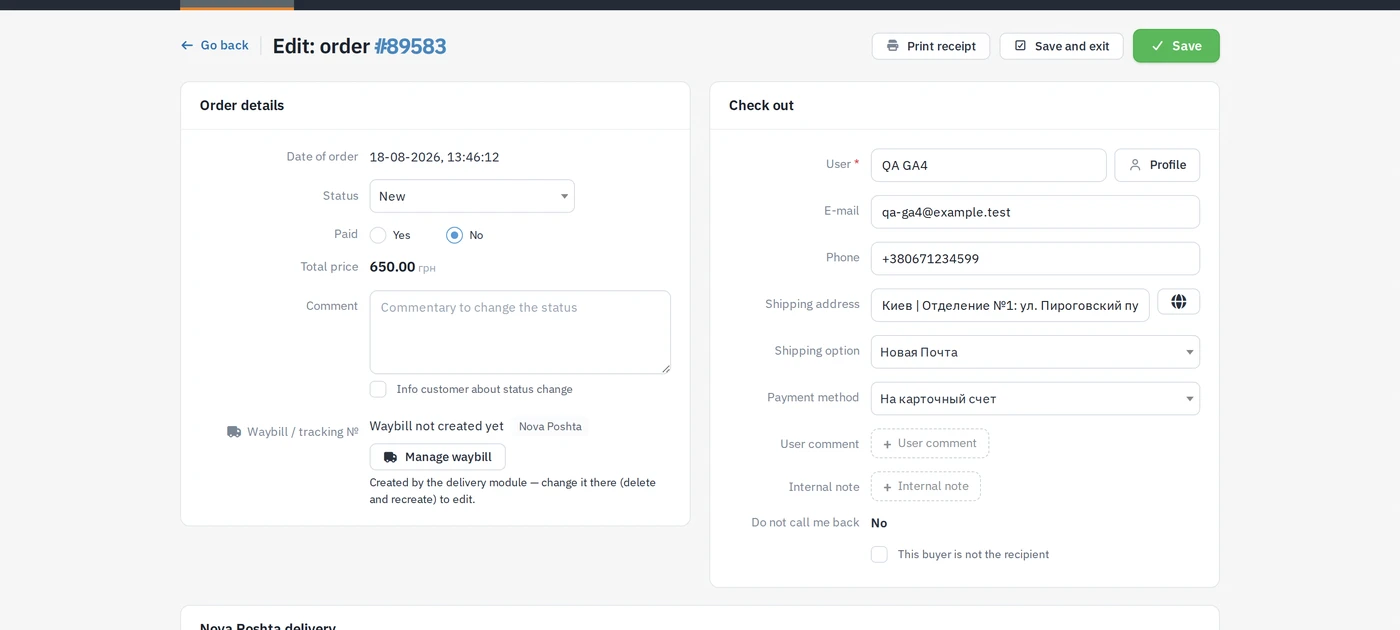
The first card holds the order dates, Status, Paid (yes/no), the order amount and the status Comment — text written here goes into the order history together with the new status; tick "Info buyer about change status" to email it to the customer.
Sent SMS
The "Sent SMS" block has two parts:
- History — every text message already sent for this order, with date and text. It is read-only and is shown whenever the order has at least one recorded SMS — including the automatic ones sent on status changes or with a waybill number — even if no SMS module is usable right now.
- Sending — a template selector, a text box and Send. These controls appear only when an SMS module is installed, active and configured (the canonical SMS Sender with a gateway set up, or the legacy Turbosendsms with its API key). Without a configured module you see just the history.
Waybill / tracking number
The "Waybill / tracking №" field behaves differently depending on who owns the shipment:
| Situation | What you see |
|---|---|
| Order is delivered by Nova Poshta (the NP delivery method, or the order already has an NP record) | Read-only: the waybill number (or "Waybill not created yet"), a Nova Poshta chip and the Manage waybill button that opens the module's waybill page for this order. The hint says: created by the delivery module — change it there (delete and recreate) to edit. |
| Any other carrier | Two editable fields — Carrier and Tracking number — saved with the order. |
So for Nova Poshta the number can never be typed by hand or overwritten from this form; for everything else it is a free field. See Creating a waybill for the NP side.
Buyer, delivery and comments
The second card ("Check out") holds the buyer's name, e-mail and phone (with a link to the user profile), the delivery address, Delivery method and Payment method. If the Nova Poshta module is linked to the chosen method, its picker sits right here — city, branch/locker or courier address, prefilled with what the customer chose; see Courier and saved addresses.
Collapsed comment blocks
Two textareas in this card are non-critical and take space only when they have something to say:
- Comments buyer — what the customer wrote at checkout;
- Internal note — a staff-only note up to 1000 characters, never shown to the customer (the placeholder reminds you of that).
When a field is empty it is collapsed to a dashed + Comments buyer / + Internal note button. Click it to open the field and type; a field that already has text is shown open. Collapsed fields are submitted empty, so saving an order without touching them changes nothing. The same internal note is visible and editable inline in the orders list (the Internal note column) and on the Nova Poshta waybill form, so wherever you write it, it is the same note.
Buyer is not the recipient
Below the comments there is the checkbox "This user is not end customer". Tick it when someone else picks up the parcel and the "End Customer information" card appears (first name, last name, middle name, phone), prefilled with the buyer's data. Nova Poshta issues the waybill to the recipient when these are filled in. Details in Buyer and recipient.
Ordered products and totals
The "Ordered products" table lets you change price and quantity per line, remove lines and add a new product to the order. Under it are the totals: goods, delivery, discount, gift certificate and the grand total, plus the discount controls — a percent or a fixed sum (fill in one, not both) and "Remove discount and recalculate the amount".
Order status and history
The last block is the read-only log: every status change with date, comment, the manager who made it and the payment status at that moment. Notes added by automations (for example "waybill created" from the Nova Poshta module) appear here too.
Save keeps you on the page, Save and go back returns to the list at the page you came from. Print receipt opens the PDF invoice for the order in a new tab.