PDF invoice
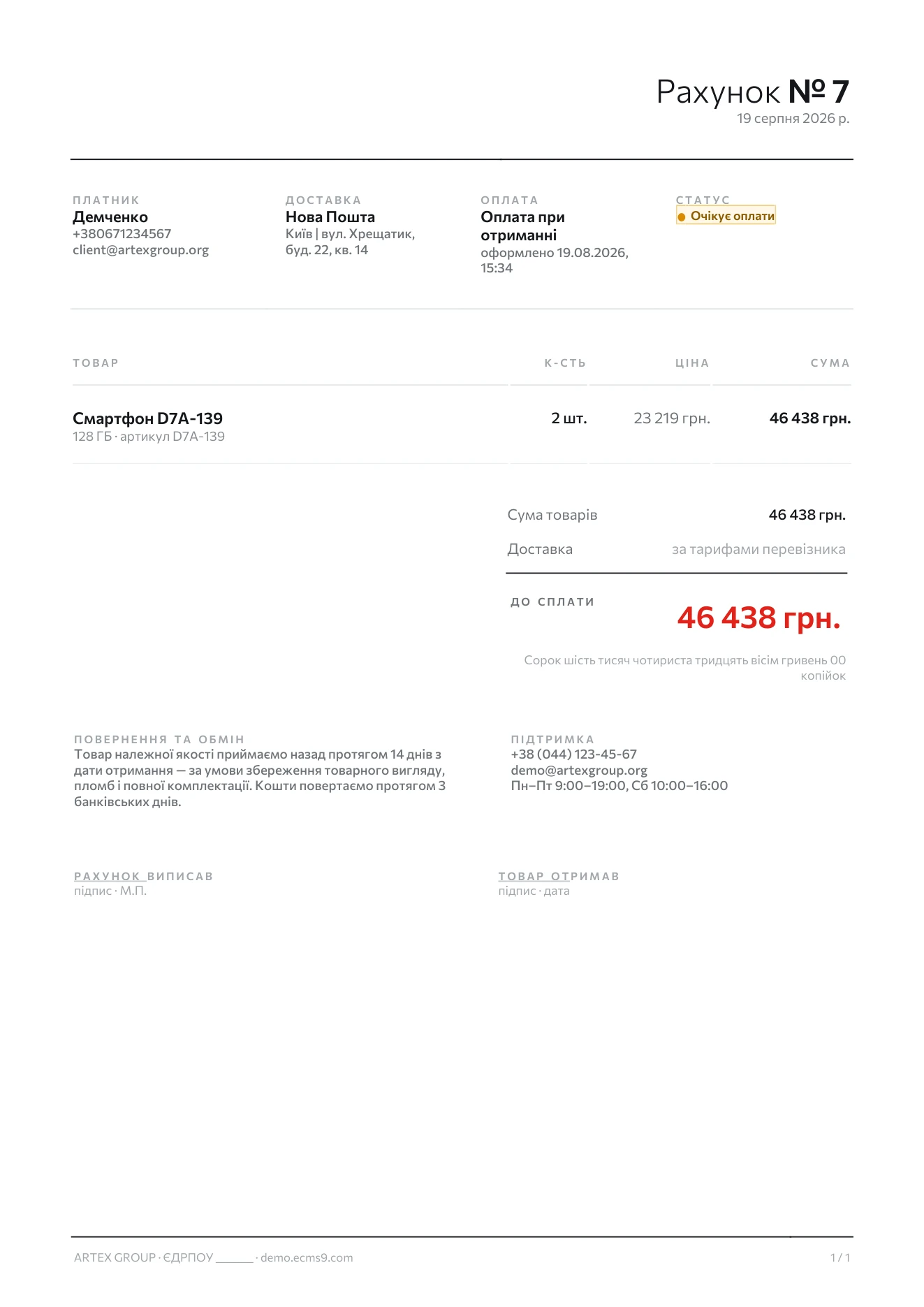
Every order can be turned into a one-page invoice in PDF: the shop logo, the order number and date, payer and delivery details, the items table, the totals in figures and in words, an optional promo code for the next purchase, the returns and support text, and the bank details in the footer. The layout is fixed; the texts are yours to set in Shop → Settings → Global settings, tab "Invoice".
Where the button is
- One order — open the order and press "Print receipt" at the top of the edit page. The PDF opens in a new browser tab; print or save it from there.
- Several orders — in the orders list tick the orders, then choose "Print" in the actions menu. One PDF is downloaded with one invoice per order, each starting on a new page.
The document is always generated in Ukrainian (headings like "Платник", "Товар", "До сплати"); the texts you enter in the settings are printed as typed.
The invoice engine is installed separately from the ECMS9 core. If the button opens an error page mentioning a missing library (mPDF) instead of a PDF, ask support — nothing is wrong with your orders or settings.
What the invoice contains
| Block | Where it comes from |
|---|---|
| Logo | the site logo from Design → Templates manager → "Logo & Favicon"; no logo — nothing is printed |
| Order number, date, status | the order itself; status is "Сплачено" for paid orders and "Очікує оплати" otherwise |
| Payer | the buyer's name, phone and e-mail from the order |
| Delivery and payment | the methods chosen in the order, with their details |
| Items table | name, variant and SKU, quantity, unit price, line total |
| Totals | goods subtotal, discount, gift certificate, delivery, amount due (also spelled out in words) |
| Delivery line | the price from the order; 0 is printed as "за тарифами перевізника". A delivery method with a free-from threshold prints free delivery when the order reaches it |
| Promo code | optional, see below |
| Returns and exchange / Support | the texts from the "Invoice" tab, or the defaults |
| Signatures | "Рахунок виписав / Товар отримав" lines, can be switched off |
| Footer | your bank details + the shop address; the site address is appended automatically |
The "Invoice" tab
Promo code for the next purchase
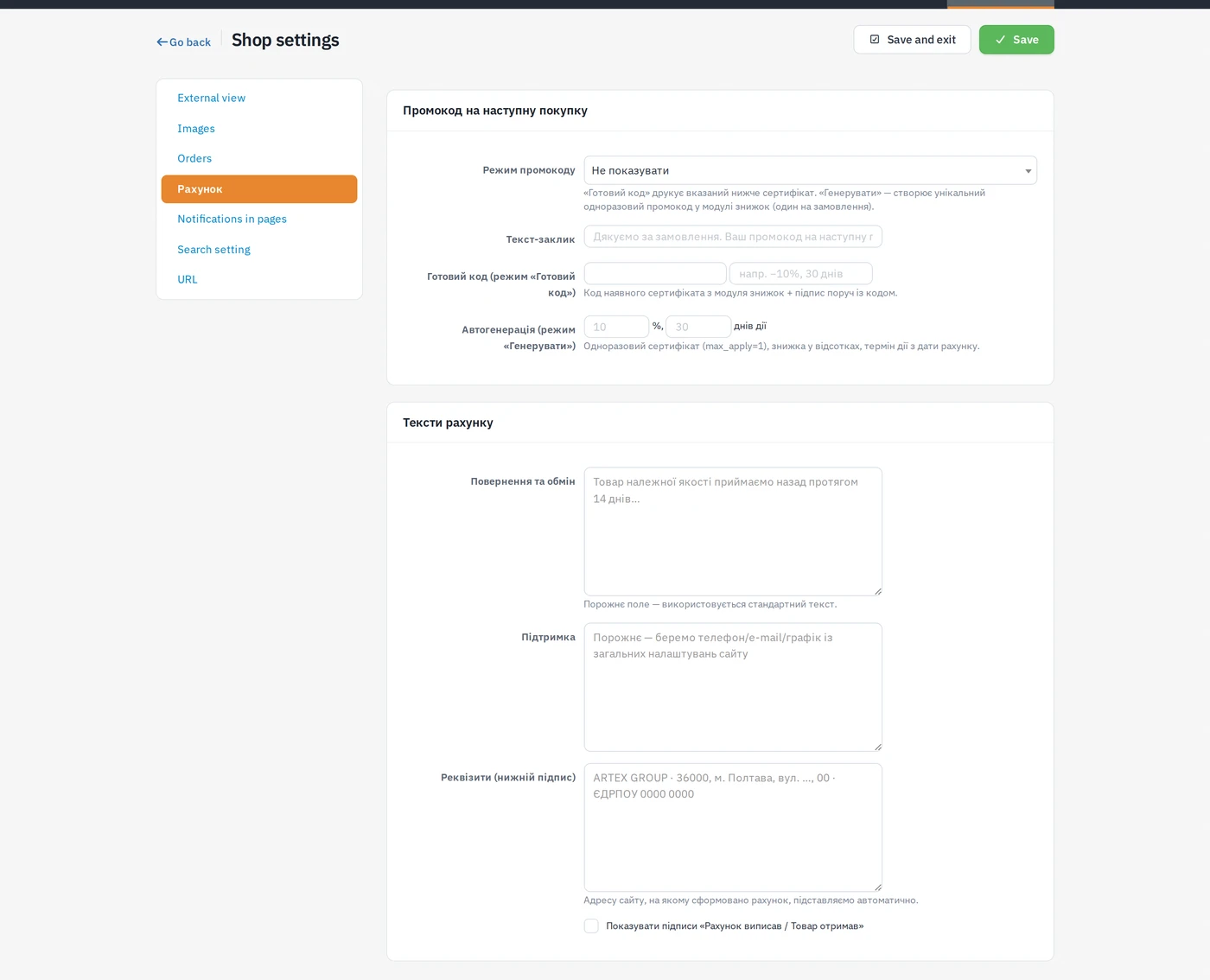
Promo code mode:
- Do not show — the block is omitted.
- Existing code from shop discounts — prints the code you enter in "Existing code" (a certificate from the discounts module) together with the short note next to it (for example "−10%, 30 days").
- Generate a one-time code for every invoice — a one-time certificate is created in the discounts module for each order, with the percentage and validity (days from the invoice date) you set in "Auto-generation". Reprinting the same invoice reuses the same code; a new code is never made twice for one order.
Lead text is the sentence printed above the code. Empty — the standard "Дякуємо за замовлення. Ваш промокод на наступну покупку:" is used.
Invoice texts
- Returns and exchange — empty means the standard 14-day wording.
- Support — empty means the main phone, admin e-mail and schedule from Settings → Site settings → "Site information" are printed, one per line.
- Bank details (footer line) — company name, address, tax ID and so on. The address of the site the invoice was generated on is added to the end of this line by itself.
- Show the "Рахунок виписав / Товар отримав" signatures — untick to drop the signature lines.
The footer and the support block draw on the site logo, address, phone and e-mail. Set them once in the site settings and the template manager, and every invoice picks them up — you only need the "Invoice" tab for the wording that differs from the defaults.
Related
- Orders list — where the bulk "Print" action lives.
- Combined discounts — the certificates the promo block prints.