Auto compare in the product card
A shopper who opens three or four phones in a row soon forgets which one had the bigger battery. The Auto compare module answers that question right in the product card: a "Compare products" table puts the product on screen next to the 1–3 products the same shopper has just viewed in the same category, characteristic by characteristic. Nobody has to press "Add to compare" first — the table builds itself from the viewing history.
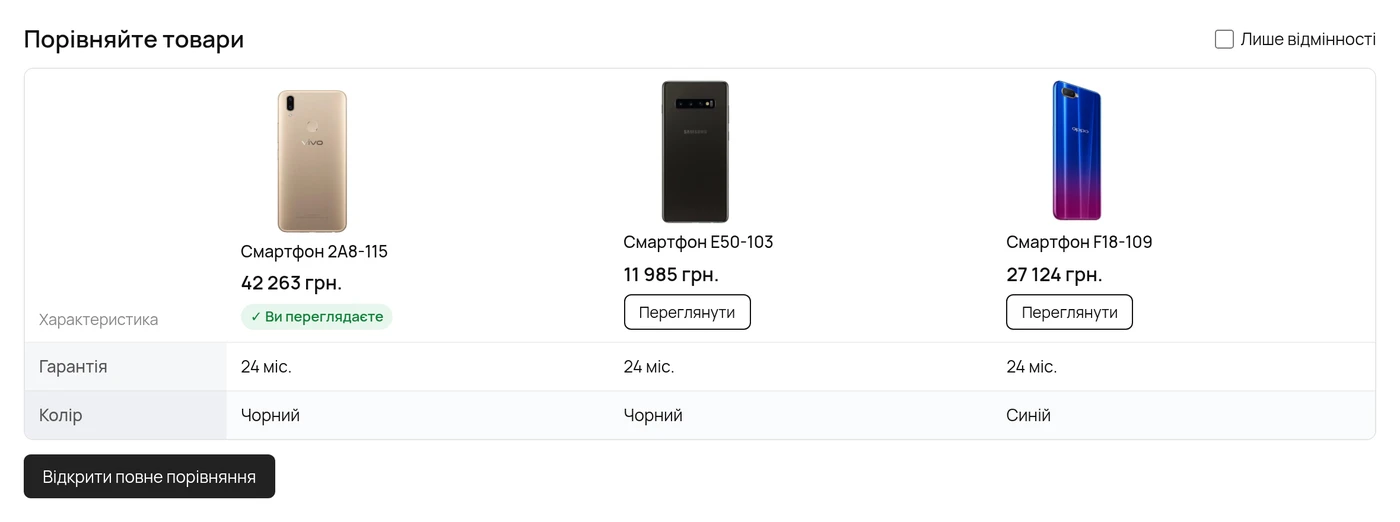
What the shopper sees
- The current product is the first column, marked "You are viewing"; the products viewed before it follow, each with a "View" button.
- Photo, name, rating and price on top; characteristics as rows below.
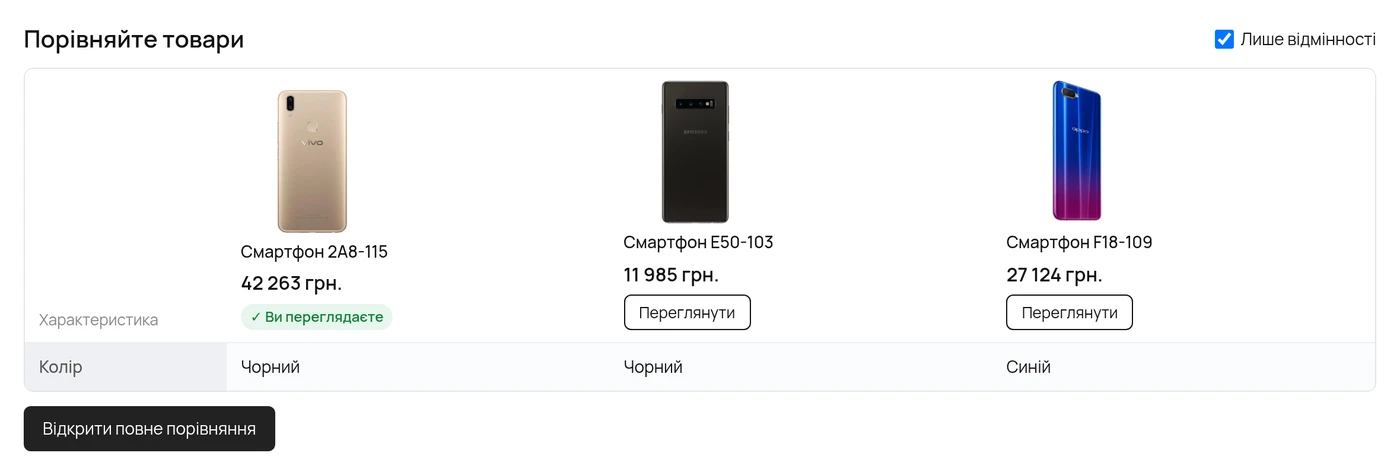
- "Differences only" switch — hides the rows where every product has the same value, so only what really differs stays on screen.
- "Open full comparison" — adds all products from the table to the shop's compare list and opens the usual comparison page.
- The table appears only when there is something to compare: on the first product the shopper opens in a category there is no block at all.
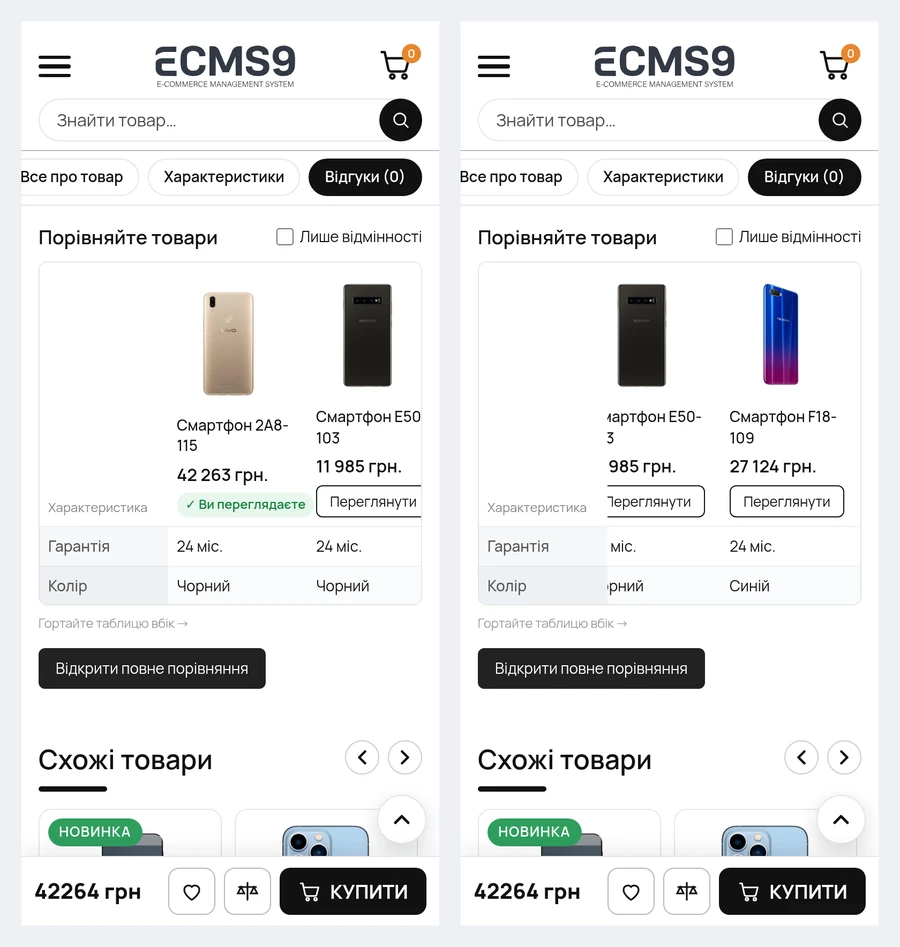
On a phone the table scrolls sideways; the first column with the names of the characteristics stays pinned, and a "Scroll the table sideways" hint shows under it.
Which products get into the table
- Only products the shopper has viewed in this browser — the last ones first.
- Only from the same category as the current product (or, if you choose so, from the neighbouring categories of the same parent section).
- Only active products that are in stock and have a price. A product that went out of stock simply drops out of the table.
- Characteristics are the same ones the comparison page shows — properties with the "Show in comparison" checkbox. Rows you listed as hidden in the settings are skipped.
Settings
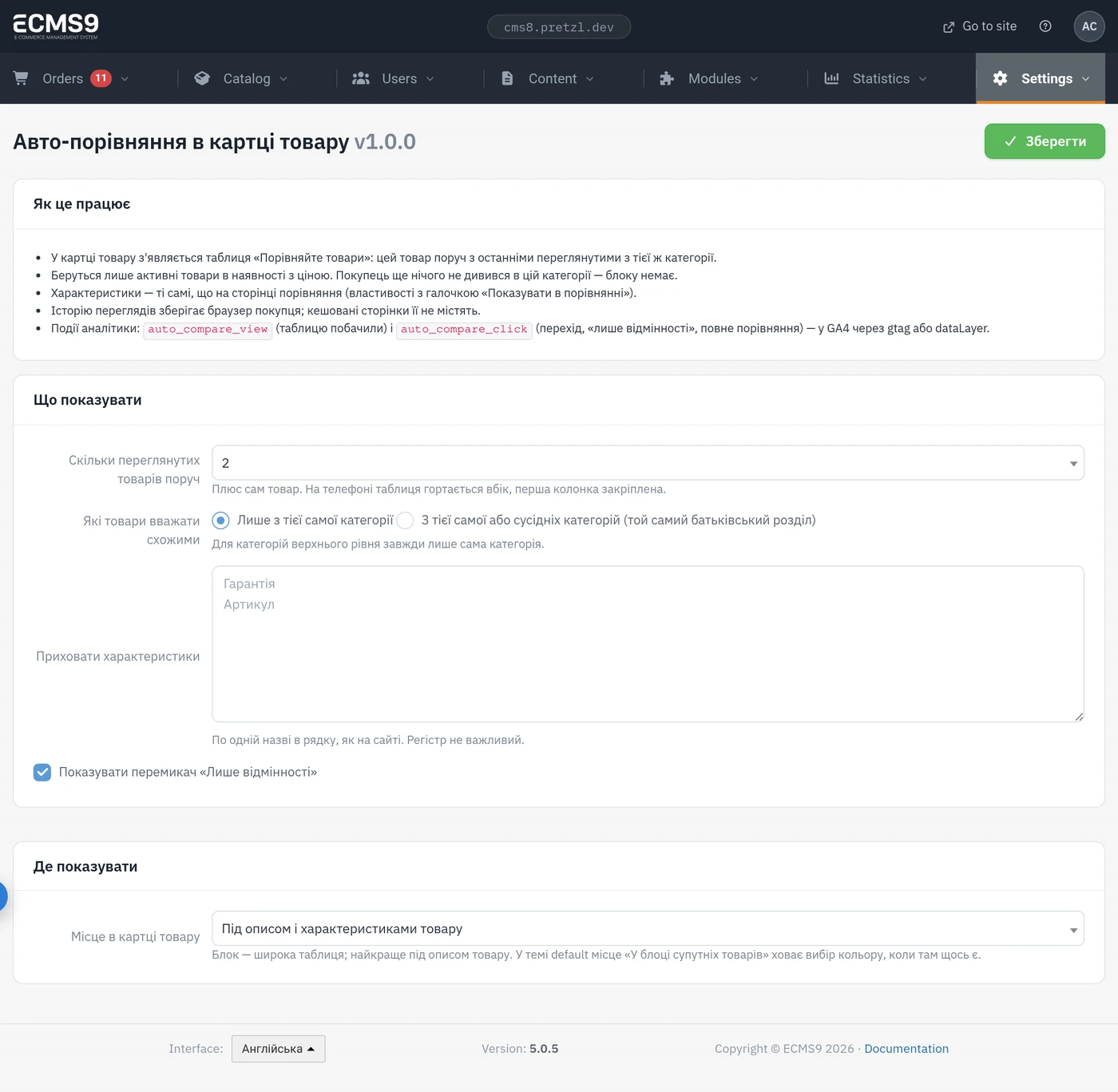
Settings → Auto compare in the admin panel (/admin/auto-compare). The
settings page is in Ukrainian in every admin language.
| Setting | What it does | Default |
|---|---|---|
| How many viewed products to show next to it | 1, 2 or 3, plus the product itself | 2 |
| Which products count as similar | Only the same category, or the same category plus its neighbours under the same parent section. For a top-level category it is always the category itself | Same category |
| Hide characteristics | One name per line, as on the site; letter case does not matter | empty |
| Show the "Differences only" switch | Turns the switch on or off | on |
| Place in the product card | Below the description and characteristics · below the product photo (next to "Share") · below the "Buy" button · next to the action buttons (wishlist, compare) · in the related products block | Below the description |
The table is wide, so the best place is below the product description — the
default. In the default theme the "related products block" place hides the
colour choice when the product has one, so keep that place for themes where it
fits.
Cache and privacy
- The viewing history lives only in the shopper's browser (
localStorage, keycms9_viewed, the same one the "Viewed products" widget uses). Nothing is written to the database and nothing is tied to the customer account. - The product page itself stays cacheable by LiteSpeed: the table is filled by
a separate request (
/auto-compare/block) that is never cached, so one shopper never sees another shopper's history. - No theme changes are needed — the block comes in through a render point that every theme already has.
Analytics
Two events go to GA4 through gtag, or to dataLayer when there is no gtag
(see GA4 events):
auto_compare_view— the table scrolled into view (once per page);auto_compare_click— a click in the table: "View", "Differences only" or "Open full comparison".
Comparing the two tells you whether shoppers actually use the table or scroll past it.
Requirements and price
- eCMS9 core 5.0.5 build 712 or newer, PHP 8.2–8.5.
- Paid module: €99 one-off, updates for 24 months; renewing updates — €50. A free 7-day trial is available. Installed from the module store; how to pay and renew — Buying modules.